Install the Windows app
Download and run the ReyDesk installer. It asks for administrator permission so ReyDesk can be allowed network access.

See and control your PC from your phone.
ReyDesk is two apps: one for Windows and one for Android. Pair your phone with a QR code or a unique Desk ID, then watch and control your PC from it.
How it works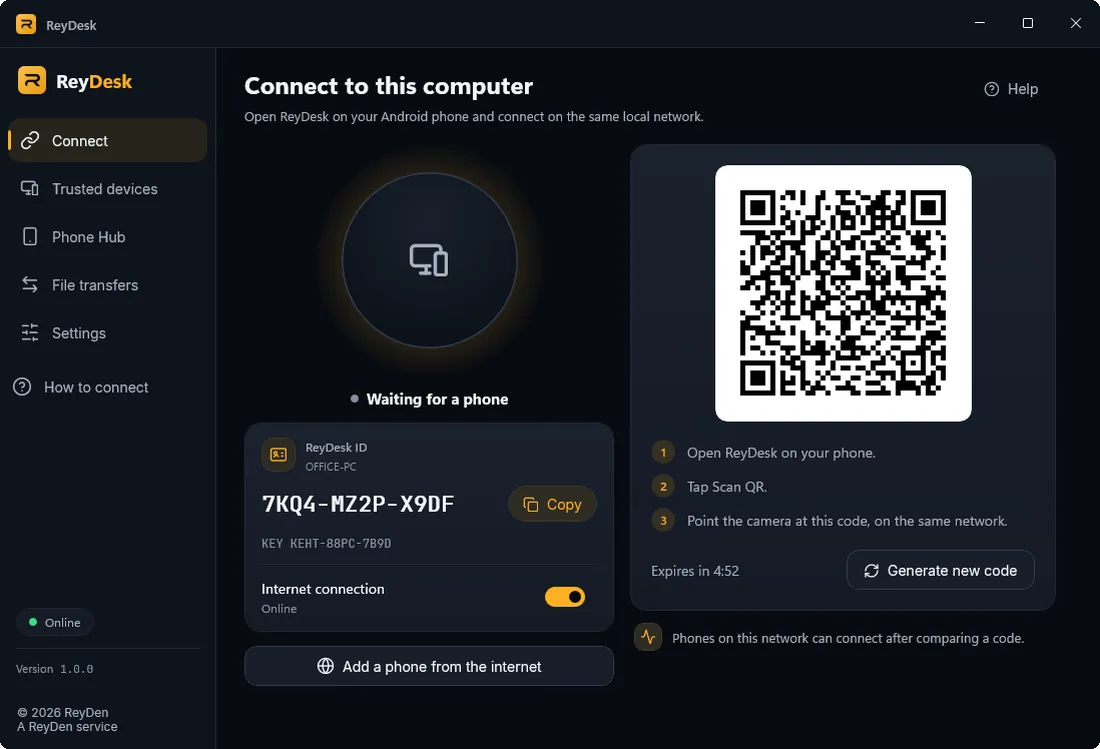
The Windows app runs next to your PC and the Android app on your phone. Every new connection has to be approved on the PC itself, so only devices you approved can connect.
In Desktop mode you watch your PC screen on the phone. In Control mode you drive it from the phone.
Each device gets a unique Desk ID. To connect over the internet, you just enter it.
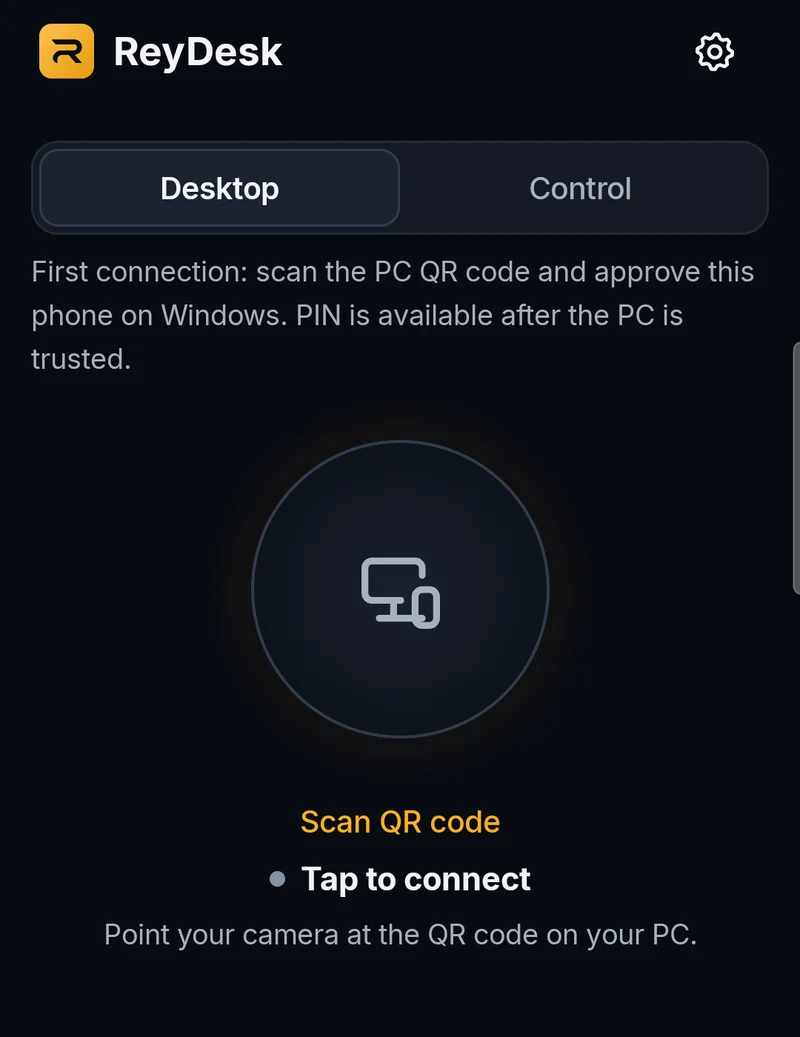
On one local network, scan the QR code on the PC with your phone and approve the new device on the PC.
Sessions are encrypted. The ReyDen server only helps set up the connection and does not store your screen or files.
Choose a receive folder once and the app remembers it. Later files save there automatically.
Notifications from the apps you choose appear on the PC. Windows alerts are a separate option and start off.
Each device has a Desk ID and every new connection is approved on the PC.

The server only helps set up the connection and does not store your screen or files.
Send files and see notifications from the apps you choose on the PC.
Download and run the ReyDesk installer. It asks for administrator permission so ReyDesk can be allowed network access.
Download the APK on your phone and install it. Android may ask you to allow installs from outside a store.
Open the Windows app. On the same network, scan its QR code in the Android app and approve the phone on the PC.
To connect from outside your local network, turn on Internet connection in the Windows app to get a Desk ID, then enter it on the phone.
The Windows installer asks for administrator permission to create the Windows Firewall rules that allow network access.
The ReyDesk source code is public on GitHub under the MIT License. Anyone can view, use, fork and modify it, and read the code to verify how the app works. The ReyDesk and ReyDen names and logos are not covered by the license and may not be used for derived products.
Screenshots come from a pre-release build and the app interface is in English.
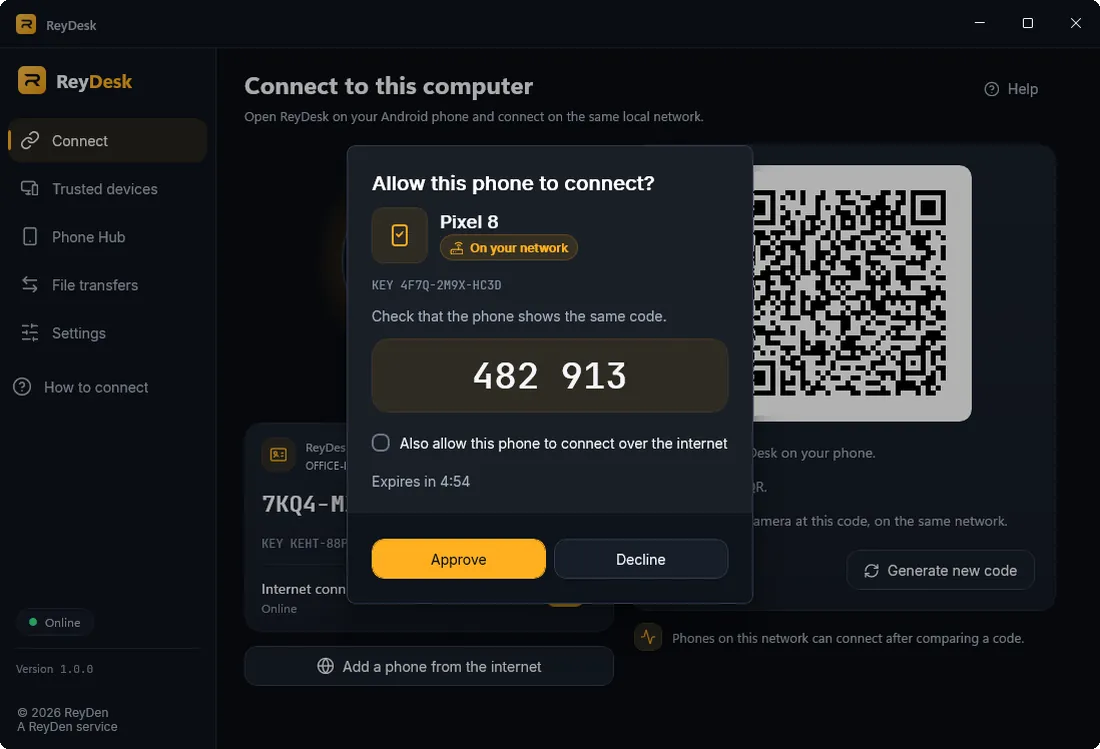
A unique ID for each device, which you enter to connect over the internet. Knowing it is not enough to connect: every new device still has to be approved on the PC.
Yes. Internet connections use the ReyDen rendezvous server (rdv.reyden.ir) to set up the connection, and your screen and files do not pass through it. On some networks, for example some mobile networks, a direct connection is not possible. For those there is an optional setting in the app, "Allow relay through ReyDesk server", which is off by default.
The Windows installer creates inbound TCP and UDP Windows Firewall rules for ReyDesk so your phone can reach the PC. That needs administrator permission.
Yes. Sessions are encrypted with WebRTC and devices are checked against keys exchanged when you pair. Every new phone has to be approved on the PC itself.
One transfer per session, up to 100 MiB. Resume and transfer queues are not supported.
Yes. ReyDesk is released under the MIT License: it is free to use, and anyone can view, fork and modify the code. The ReyDesk and ReyDen names and logos are not covered by the license and may not be used for derived products. The license text is in the ReyDesk repository on GitHub.
No. Notification content stays in the PC memory only and no history is kept. Only the apps you choose send notifications. It is not a full SMS history.

Download ReyDesk for Windows and Android.